A step-by-step maker guide for senior high school students. No prior electronics experience required.
01What is a Virtual Fence?
A dairy cow — one of the real-world users of virtual fences. Farms put receiver collars on the herd so the cows know when they're leaving the pasture. Image: USDA, public domain.
A virtual fence is an invisible boundary you can build out of wire and electronics. Instead of using wood, metal, or concrete to block something, a virtual fence uses an electromagnetic signal to mark a line in space. When something (or someone) crosses that line, a small receiver detects the signal and triggers an alert — in our case, a buzzer.
Where are virtual fences used?
Livestock management. Farms place wires in the ground so cattle wearing receiver collars know when they're leaving the pasture.
Pet containment. The "invisible dog fence" in backyards uses the same idea.
Robotics & manufacturing. Warehouse robots use buried wires to stay inside a zone.
Museums & exhibits. Alerts when visitors get too close to a fragile display.
What are we going to build?
Two small circuits:
A transmitter that pushes a 5 kHz signal into a loop of copper wire you lay on the floor.
A receiver tethered to your laptop on a long USB cable. It listens for that signal and beeps when you move it inside the loop.
Cool fact
The 5 kHz signal in the loop is electromagnetic, not acoustic — it travels as a magnetic field, not as sound waves. You can't hear it no matter where you stand. The only sound in this project comes from the buzzer, which the receiver switches on when it picks up that magnetic signal.
02How It Works (The Science)
Our virtual fence works using a principle you already know: an electric current moving through a wire creates a magnetic field around it. That's the rule behind every electric motor, speaker, and transformer on Earth.
Step 1 — The transmitter creates a changing magnetic field
The Arduino Nano in the transmitter generates an electrical signal that wiggles back and forth 5,000 times every second. That signal is sent directly through a big loop of copper wire laid on the floor.
Because the current is changing direction 5,000 times per second, the magnetic field around the wire is also changing 5,000 times per second. This creates an alternating magnetic field that fills the space inside the loop.
A live look at the 5 kHz signal the transmitter pushes through the loop (animation speed slowed for readability)
Step 2 — The receiver picks up that changing field
Now here's the magic, and it comes from a law called Faraday's law of induction. In plain English:
Faraday's law (plain English)
If you put a coil of wire inside a changing magnetic field, a voltage automatically appears across the ends of that coil. No battery needed.
The 10 mH inductor on the receiver board is exactly that: a tiny coil of wire wound inside a small component. When you move the receiver into the transmitter loop, the 5 kHz alternating field makes a tiny 5 kHz voltage appear across the inductor.
Step 3 — The LC tank "rings" at 5 kHz
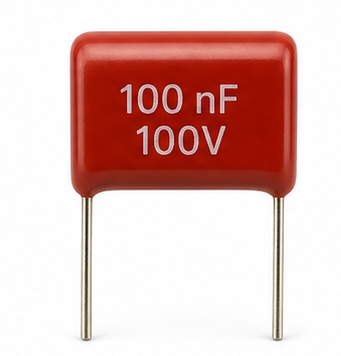
The signal picked up by the inductor is tiny, and there's lots of other electrical noise in the environment. So we make the receiver picky: we pair the inductor with a 100 nF capacitor to form what's called an LC tank circuit. It amplifies signals at one specific frequency and ignores everything else.
The magic frequency is called the resonant frequency, and it's given by:
f = 1 / (2π √(L · C))
Where L is the inductance in henries and C is the capacitance in farads. For our values:
f = 1 / (2π √(0.010 H · 0.0000001 F))
≈ 5,033 Hz
That's ~5 kHz — exactly the frequency the transmitter is shouting at. The tank "rings" when it hears its favorite note, just like a tuning fork.
Analogy
Push a kid on a swing. If you push at random times, nothing much happens. If you push at exactly the right moment every cycle, the swing goes higher and higher. The LC tank is the swing. 5 kHz is the "right moment."
Step 4 — Amplify, threshold, alert
The Arduino reads the tank signal on analog input A0, measures its strength, and estimates whether the 5 kHz signal is present. If the measured amplitude crosses a tuned threshold, it turns on the buzzer. The live frequency, amplitude, and status are printed in the Arduino Serial Monitor.
Transmitter signal path
flowchart LR
    PB[Laptop USB port
5 V]:::pwr --> NANO[Arduino Nano
5 kHz generator]:::chip
    NANO -- D9 / D10 --> LOOP([Copper wire loop
on the floor]):::load
    classDef pwr fill:#F5F1E7,stroke:#9A0000,color:#1A1A1A,stroke-width:2px
    classDef chip fill:#FFFFFF,stroke:#D00000,color:#1A1A1A,stroke-width:2px
    classDef load fill:#FCECEC,stroke:#D00000,color:#1A1A1A,stroke-width:2px
    classDef io fill:#ECE6D2,stroke:#9A0000,color:#1A1A1A,stroke-width:2px
Receiver signal path
flowchart LR
    FIELD([Magnetic field
inside loop]):::load --> TANK[10 mH + 100 nF
LC tank]:::chip
    TANK -- A0 --> RNANO[Arduino Uno
threshold logic]:::chip
    RNANO -- D7 --> BUZ[Buzzer]:::io
    RNANO -- USB serial --> MON[Serial Monitor]:::io
    classDef chip fill:#FFFFFF,stroke:#D00000,color:#1A1A1A,stroke-width:2px
    classDef load fill:#FCECEC,stroke:#D00000,color:#1A1A1A,stroke-width:2px
    classDef io fill:#ECE6D2,stroke:#9A0000,color:#1A1A1A,stroke-width:2px
Check yourself
Can you explain in one sentence why the receiver coil produces a voltage when you move it inside the loop? (Hint: Faraday.)
03Safety First
This project runs on 5 volts from your laptop's USB port. That's the same voltage as a phone charger — safe to touch. Both the transmitter and the receiver Arduino plug into the laptop with a USB cable while you're testing. Still, a few common-sense rules apply.
Never
Never connect your circuit to a wall outlet, car battery, or anything that isn't a laptop USB port. The parts in this guide are only rated for 5 V.
Watch out
Breadboards don't forgive wiring mistakes. Before you plug in power, double-check every wire against the diagram. A reversed power connection can destroy the Arduino in seconds.
Good habits
Unplug USB before moving wires. Keep the workbench clear of drinks and loose metal (coins, rings, keys) — they love to short out circuits.
Parts that get warm
If the Arduino, buzzer, or any wire ever feels hot (not just warm), unplug USB immediately. It probably means something is wired wrong or an output is shorted.
04Materials Needed
Transmitter unit
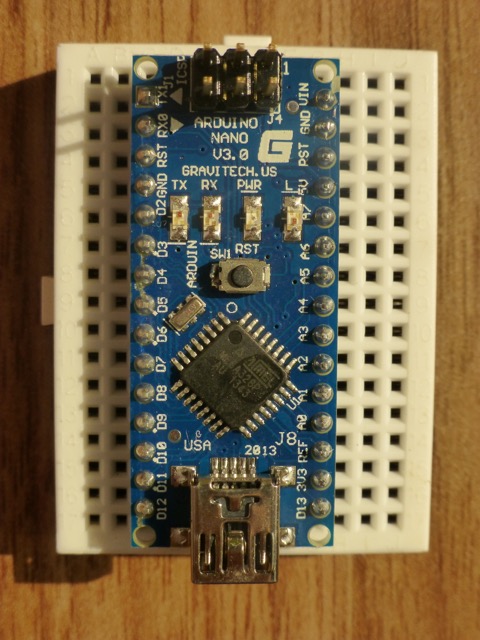
Arduino Nano (ATmega328P)
The brain — generates the 5 kHz signal.
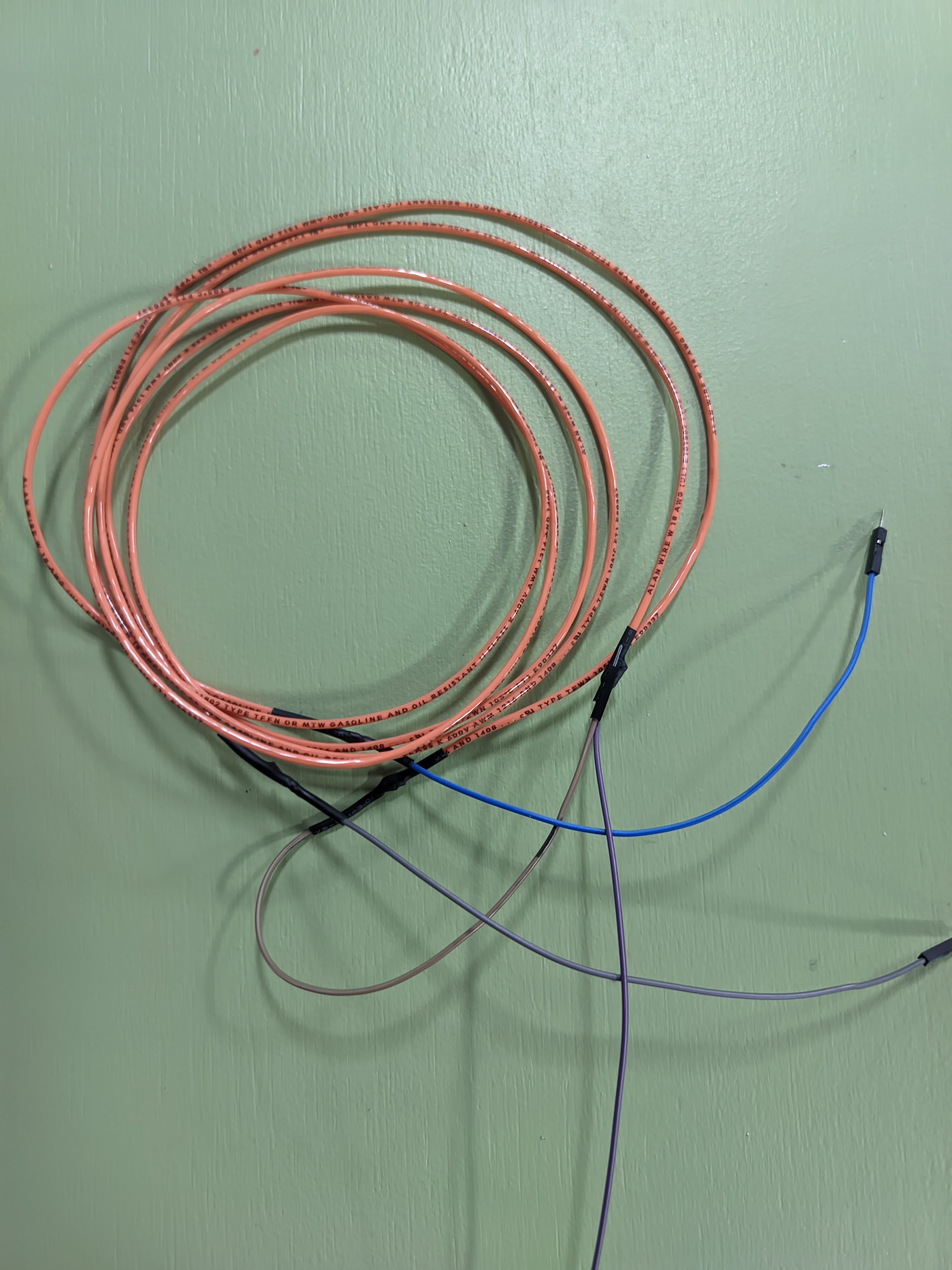
Copper coil wire (~3 m) provided
Forms the fence loop on the floor. Tape it down to the floor along the loop so it doesn't shift while testing.
USB cable to laptop
Powers the Nano with 5 V from the laptop's USB port.
That's it for the transmitter — the two stripped ends of the copper loop plug directly into the Nano's D9 and D10 header sockets. No breadboard or jumpers needed.
Receiver unit
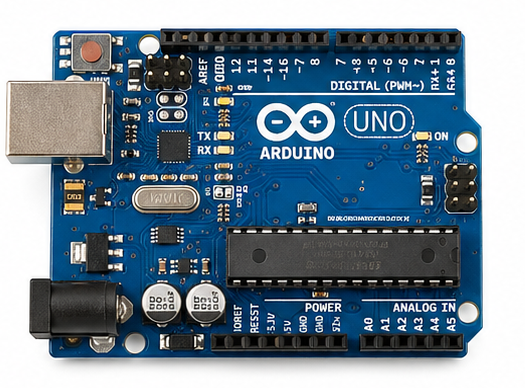
Arduino Uno (ATmega328P)
Reads the signal and runs detection logic.
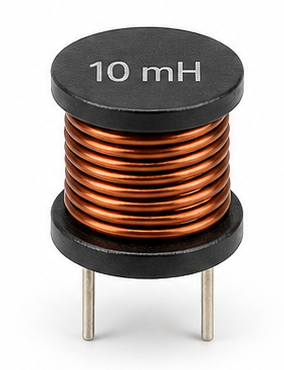
10 mH inductor
Picks up the changing magnetic field (Faraday's law).
100 nF capacitor
Pairs with the inductor to form a resonant LC tank at ~5 kHz.
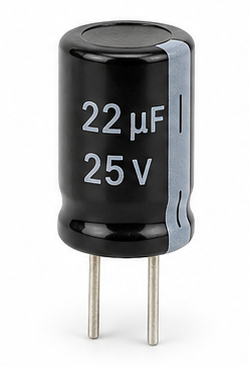
22 µF capacitor
Stabilizes the receiver's 2.5 V bias point.
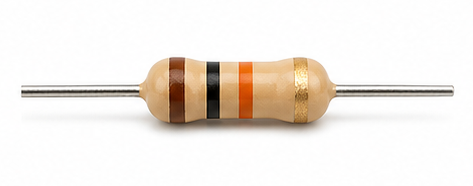
10 kΩ resistors (2)
Create the receiver's midpoint bias between 5 V and ground.
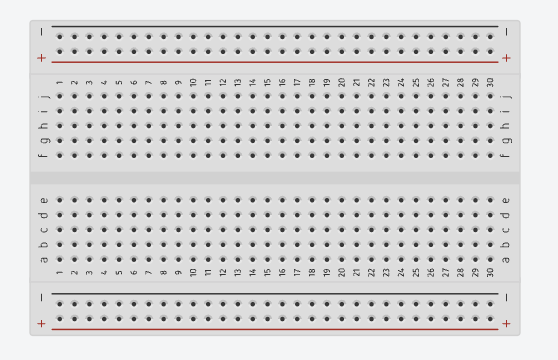
Full-size breadboard
Holds everything without soldering.
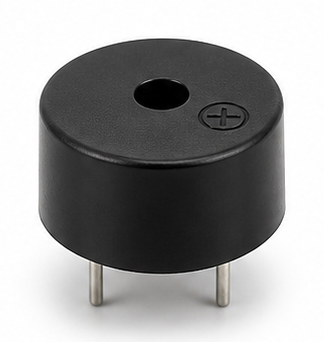
Passive buzzer (5 V)
The alert sound when the fence trips. The Arduino drives it with a square-wave tone() signal — passive buzzers need that to make sound, active buzzers don't.
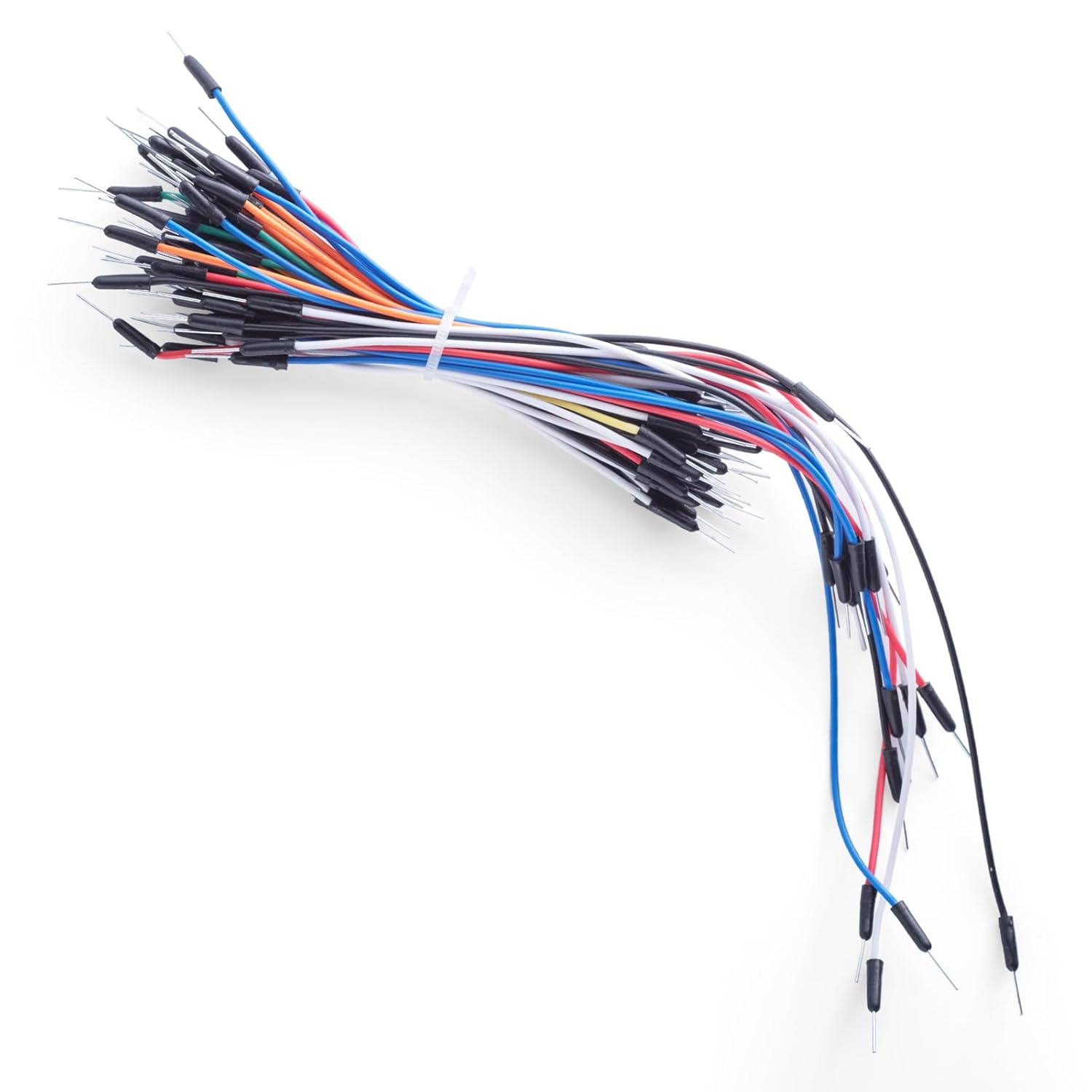
Jumper wires
Connect Arduino pins to the breadboard rails and rows.
USB cable to laptop
Powers the Uno and carries Serial Monitor data back to the laptop.
Shopping tip
Buy extra jumper wires. Most build problems come from loose or misplaced breadboard connections, and spares make testing easier.
05Tools You'll Need
Computer (Windows, macOS, or Linux) with internet access.
Two USB cables, one per board:
For the transmitter Nano: usually mini-USB or USB-C, depending on the clone.
For the receiver Uno: USB-B (the big square printer-style connector).
Either way, the other end plugs into your laptop — data cables, not charge-only.
Wire strippers for cutting and stripping the copper loop wire.
Scissors and masking tape for laying out the loop on the floor.
(Optional) Multimeter — handy for checking continuity and 5 V lines.
If you don't have a multimeter
You can still finish the project. We'll use the Arduino's built-in debugging in the Serial Monitor as your "meter."
06Setting Up the Arduino IDE
The Arduino IDE is the free app you use to write code and upload it to the Arduino. This project uses two boards — an Arduino Nano for the transmitter and an Arduino Uno for the receiver — so you'll repeat the steps below twice, once per board.
Go to arduino.cc/en/software and download the latest Arduino IDE 2.x for your operating system. Install it.
Plug one Arduino board into the computer with a USB cable. The power LED on the board should turn on.
Open the Arduino IDE. Go to Tools → Board → Arduino AVR Boards and pick the board you just plugged in:
For the transmitter: Arduino Nano.
For the receiver: Arduino Uno.
(Nano only) Go to Tools → Processor and pick ATmega328P. If uploads fail later, come back here and try ATmega328P (Old Bootloader) instead — many cheap Nano clones use that one. The Uno doesn't need this step.
Go to Tools → Port and pick the port that showed up when you plugged the board in. On Windows it's usually COM3 or higher; on macOS it looks like /dev/cu.usbserial-XXXX (Nano clones) or /dev/cu.usbmodemXXXX (Uno).
Open File → Examples → 01.Basics → Blink. Click the Upload button (right arrow). If the onboard LED starts blinking once per second, that board is ready.
Repeat steps 2–6 for the other board so both are confirmed working before you build anything.
Uploads failing?
Try the Old Bootloader processor option. Still failing? Try a different USB cable — some cheap cables are charge-only with no data wires.
Project code files
This version does not need any Arduino Library Manager installs. The transmitter uses one local header file included with this project.
Download:code.zip — contains both sketches in their own folders, with the transmitter's magloop_tx.h already alongside transmitter.ino. Unzip it and open each .ino in the Arduino IDE.
The receiver sketch only uses built-in Arduino functions: analogRead(), Serial, tone(), and noTone() — no extra files needed.
07Build 1 — The Transmitter
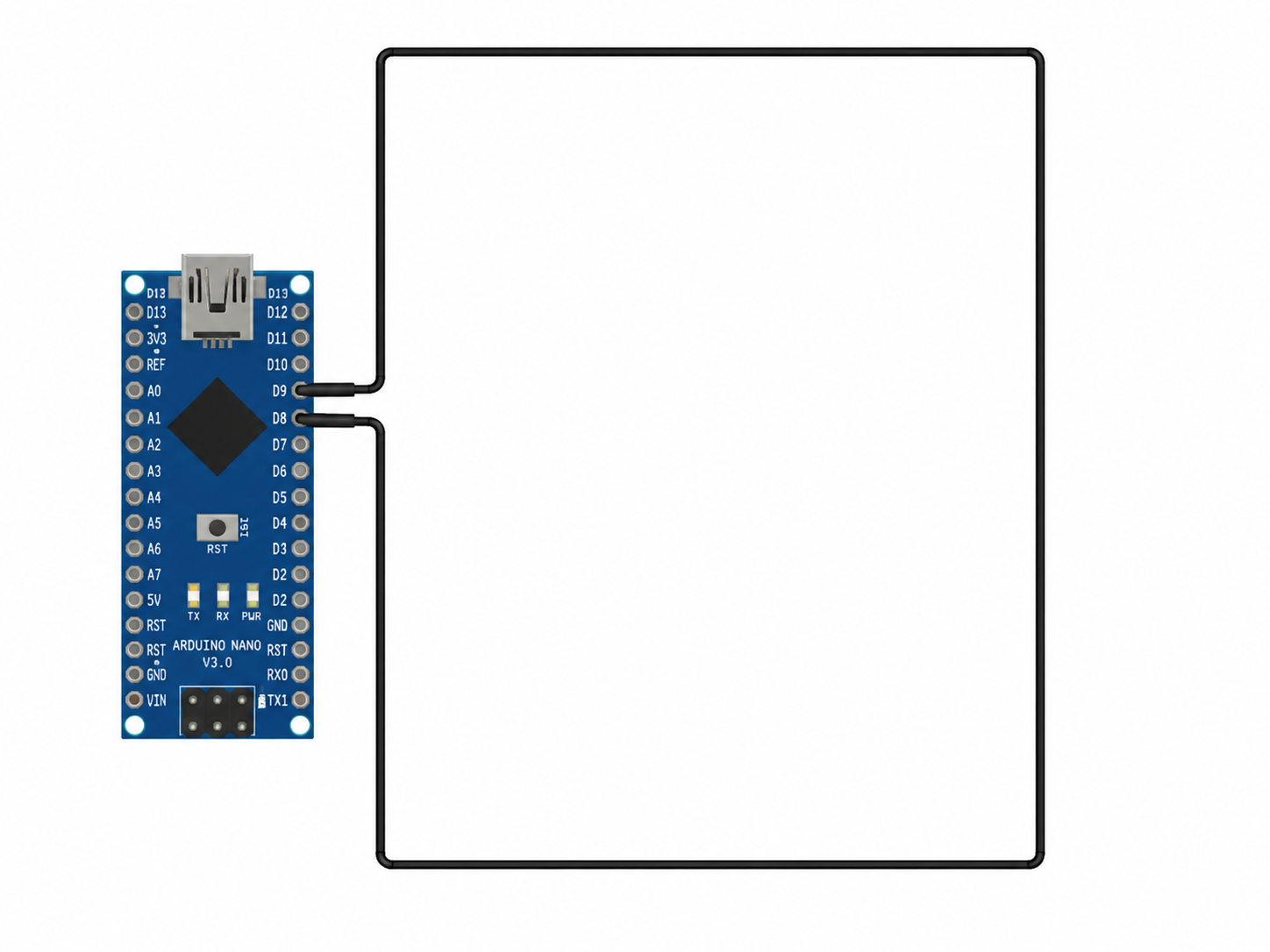
The transmitter's job is to fire a constant 5 kHz signal through the copper loop on the floor. We'll wire the loop directly to the Arduino's Timer1 output pins, then upload the code.
Wiring
From
To
Note
Nano D9
One end of the copper loop
5 kHz carrier output
Nano D10
Other end of the copper loop
Complementary Timer1 output
Transmitter wiring overview (tap to enlarge)
Laying the loop
Take the pre-cut copper coil wire (provided with the kit). The ends are already stripped — no cutting or stripping needed.
Lay the wire on the floor as a single-turn rectangle or circle.
Tape the wire down to the floor along the entire loop — corners and long runs — so it can't shift, snag, or get kicked while you're testing.
Connect one stripped end to Nano D9 and the other stripped end to Nano D10.
Bigger is not always better
Small loops (1–2 m across) give stronger signals. Very large loops (6 m+) work less reliably because the Arduino is driving the loop directly.
Upload the transmitter code
Download code.zip if you haven't already, and unzip it. You'll get a code/transmitter/ folder containing both transmitter.ino and the magloop_tx.h header it needs.
Open code/transmitter/transmitter.ino in the Arduino IDE.
Click Upload. The full source of both files is also reproduced inline below and in the Appendix if you'd rather copy-paste.
#include "magloop_tx.h"

void setup() {
  magLoopTX.begin();
  Serial.begin(9600);
  Serial.println("Transmitter running on D9/D10 at 5 kHz");
}

void loop() {
  // magLoopTX.begin() keeps the 5 kHz carrier running on D9/D10.
}
Checkpoint
Open Tools → Serial Monitor and set the baud rate to 9600. You should see Transmitter running on D9/D10 at 5 kHz printed once. If that line appears, the sketch uploaded and the board is alive. You won't hear anything from the transmitter itself — that's normal. The 5 kHz signal is in the loop; the receiver will pick it up and beep.
08Build 2 — The Receiver
The receiver is the "detector" you move in and out of the loop while it stays plugged into the laptop on a USB cable. It watches for the 5 kHz signal, and when it sees a strong one, it buzzes.
How a breadboard works (30-second tour)
If this is your first breadboard, here's what you need to know before the wiring table makes sense.
Power rails (the long edges). The two long stripes marked "+" and "−" running along the edges are the rails. Every hole on the "+" stripe is internally connected to every other hole on that same stripe (same for "−"). You plug Arduino 5V into the "+" rail and GND into the "−" rail once, and the whole rail becomes available power for any component.
The middle (rows numbered 1, 2, 3…). The middle area is split in half by a horizontal trough. On the top half, the holes labelled a, b, c, d, e in the same numbered row are all connected to each other — so a7, b7, c7, d7, e7 are one shared electrical node. The bottom half (f–j) works the same way and is electrically separate from the top half.
The trough. The gap exists so chips with two rows of pins can straddle it without shorting their two sides together. We don't use chips here, but the trough still separates the top half from the bottom half.
So when the wiring table below says “10 kΩ resistor #1: + rail → c7”, it means: plug one leg into any hole on the “+” rail, plug the other leg into the hole at column c, row 7. Anything else you later plug into a7, b7, d7, or e7 will be electrically connected to that same resistor leg.
The LC tank
The first thing we build is the tank circuit: the 10 mH inductor and the 100 nF capacitor in parallel. This is the piece that "rings" when the transmitter is nearby.
LC tank circuit (10 mH inductor in parallel with 100 nF capacitor)
The bias network
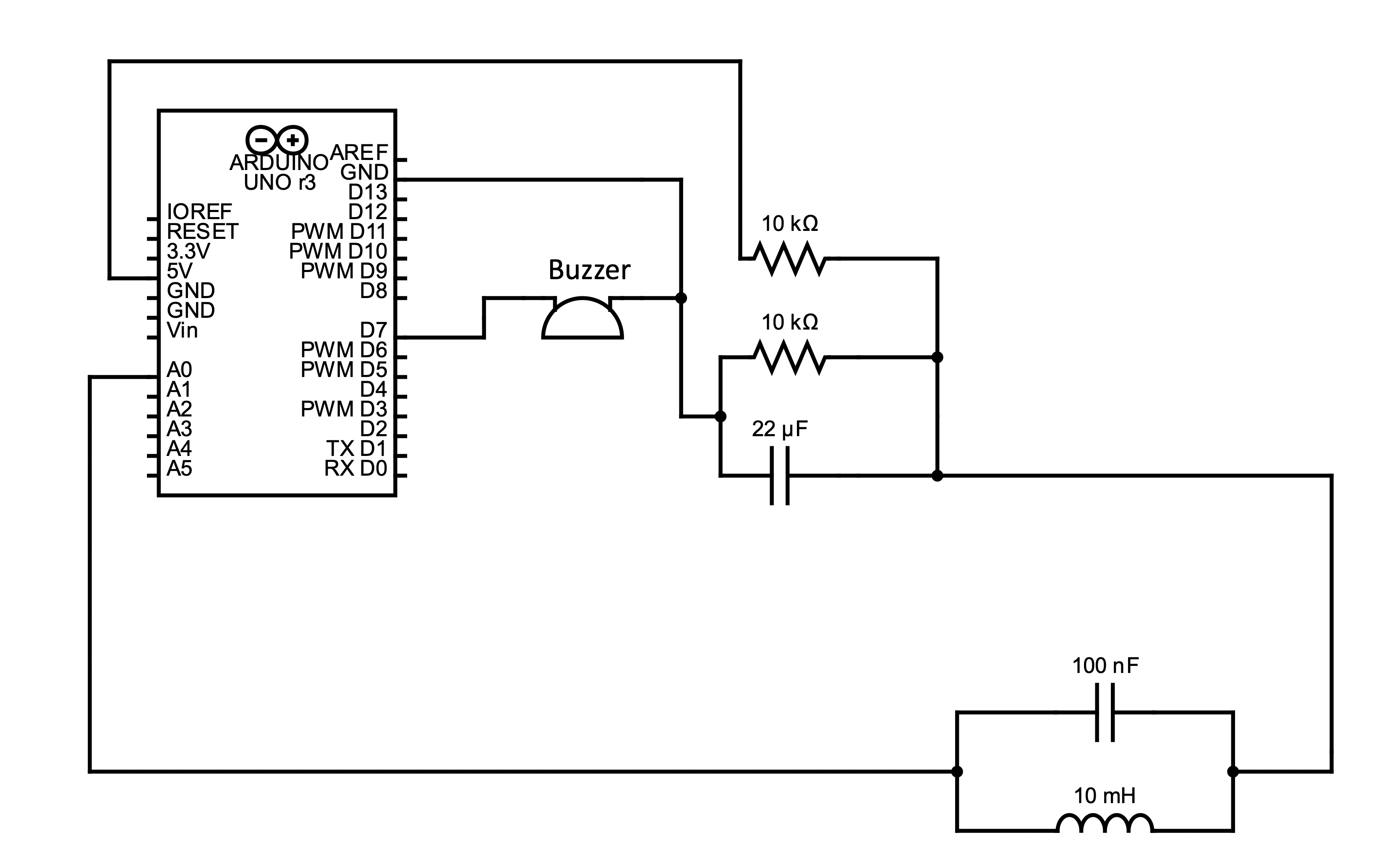
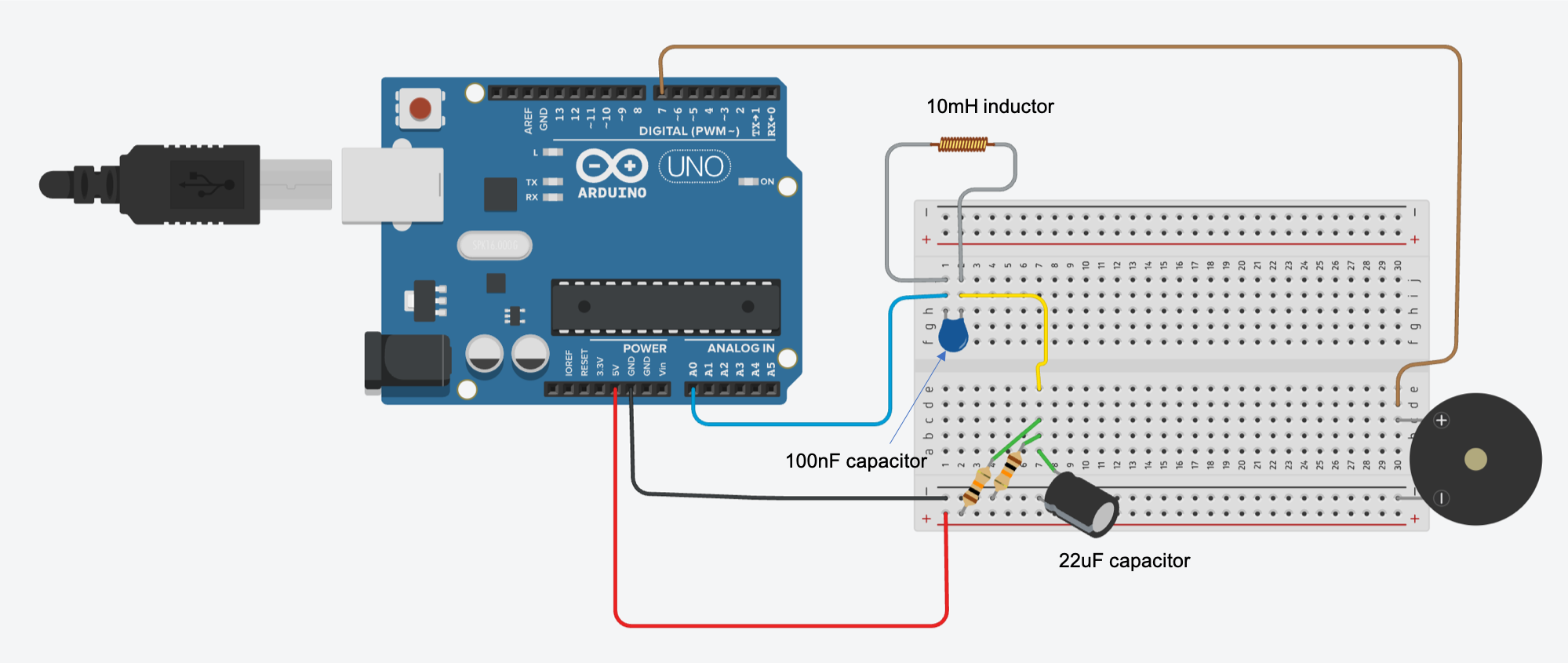
The Arduino's A0 pin can only read voltages between 0 V and 5 V — it can't read negative voltage. But the AC signal from the LC tank swings above and below zero. So before feeding it to A0, we shift the whole signal up: the two 10 kΩ resistors form a voltage divider between 5 V and ground that sits at exactly 2.5 V (the midpoint), and the 22 µF capacitor smooths that point so the supply rails don't wobble it. The tiny AC signal from the tank then rides on top of 2.5 V — comfortably inside A0's measurement range.
Receiver module circuit diagram (tap to enlarge)
Wiring
Your circuit should look something like this (tap to enlarge)
Note: The breadboard rows and columns below are for reference only — they assume the exact layout shown in the diagram above. The actual positions can be different depending on your breadboard size or how you choose to place components. Always look at the circuit diagram to understand the schematic; the row/column labels here are just one valid arrangement.
One thing to watch: the 10 mH inductor and 100 nF capacitor must stay in parallel, so their low-side legs need to share the same row. If your capacitor's legs are too wide to fit rows 1 and 2, move it to rows 1 and 4 — and move the inductor and the yellow jumper to row 4 to match.
From
To
Note
Uno 5V
Breadboard "+" rail
Power
Uno GND
Breadboard "−" rail
Ground
10 kΩ resistor #1
"+" rail → c7
Top half of the voltage divider
10 kΩ resistor #2
"−" rail → b7
Bottom half of the voltage divider
22 µF + (long leg)
a7
Bias smoothing cap; watch polarity
22 µF − (short leg)
"−" rail
10 mH inductor
h1 ↔ h2
Non-polarized; use h4 instead of h2 if the cap is wide (see note)
100 nF capacitor
j1 ↔ j2
Parallel with the inductor; use j4 instead of j2 if its legs are wide
Blue jumper
i1 → Uno A0
Tank signal feeding the Arduino input
Yellow jumper
e7 → i2
Ties the BIAS node to the tank-low side; use i4 if you moved to row 4
Buzzer − leg
Breadboard "−" rail
Direct, no breadboard row
Buzzer + leg
c30
Signal node
Brown jumper
d30 → Uno D7
Carries D7 signal to the buzzer's + leg via row 30
Polarity matters
The 22 µF capacitor is polarized. The long leg is positive (+), the short leg is negative (−). Putting it in backwards can make it fail. The resistors, 10 mH inductor, and 100 nF capacitor are not polarized — either way is fine.
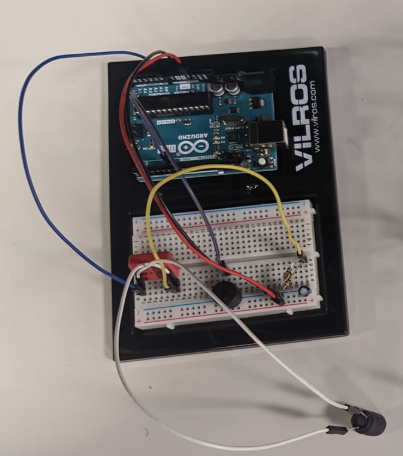
Your receiver should look like this once assembled
Fully assembled receiver module (tap to enlarge)
Upload the receiver code
Create a new folder called receiver.
Copy the sketch below as receiver.ino in that folder.
Open it in Arduino IDE and click Upload.
Open Tools → Serial Monitor and set the baud rate to 115200.
#define PIN A0
#define NUM_SAMPLES 500
#define HYSTERESIS 5

#define APPROACH_THRESHOLD 20
#define NO_FENCE_THRESHOLD 5
#define FREQUENCY_THRESHOLD 100
#define BUZZER_PIN 7

void setup() {
  Serial.begin(115200);

  // Speed up ADC on Arduino Uno/Nano/ATmega328P.
  ADCSRA = (ADCSRA & 0b11111000) | 0x04;

  pinMode(BUZZER_PIN, OUTPUT);
  delay(500);
}

void playBuzzer() {
  tone(BUZZER_PIN, 100);
}

void stopBuzzer() {
  noTone(BUZZER_PIN);
}

void loop() {
  int minVal = 1023;
  int maxVal = 0;

  for (int i = 0; i < NUM_SAMPLES; i++) {
    int v = analogRead(PIN);
    if (v < minVal) minVal = v;
    if (v > maxVal) maxVal = v;
  }

  int amplitude = maxVal - minVal;
  int midpoint = (maxVal + minVal) / 2;
  int upper = midpoint + HYSTERESIS;
  int lower = midpoint - HYSTERESIS;
  int risingCrossings = 0;
  bool wasLow = false;

  unsigned long startTime = micros();

  for (int i = 0; i < NUM_SAMPLES; i++) {
    int v = analogRead(PIN);

    if (v < lower) {
      wasLow = true;
    }
    if (v > upper && wasLow) {
      risingCrossings++;
      wasLow = false;
    }
  }

  unsigned long elapsed = micros() - startTime;
  float frequency = risingCrossings / (elapsed / 1000000.0);
  String statusMessage;

  if (amplitude < NO_FENCE_THRESHOLD || frequency < FREQUENCY_THRESHOLD) {
    statusMessage = "No fence";
    stopBuzzer();
  } else if (amplitude >= APPROACH_THRESHOLD) {
    statusMessage = "Approaching";
    playBuzzer();
  } else {
    statusMessage = "Inside fence";
    stopBuzzer();
  }

  Serial.print("Freq:");
  Serial.print(frequency);
  Serial.print(" Hz\tAmplitude:");
  Serial.print(amplitude);
  Serial.print("\tStatus:");
  Serial.println(statusMessage);

  delay(100);
}
What the magic numbers mean
The sketch has a few constants at the top that look mysterious. Here's what they actually do:
NUM_SAMPLES = 500 — how many analogRead() samples the loop takes per measurement window. More samples = a cleaner reading of the wave's peak-to-peak swing, but slower updates. 500 is enough to catch many full cycles of a 5 kHz wave.
HYSTERESIS = 5 — a "dead band" around the midpoint, in raw ADC counts. When we count rising edges to estimate frequency, the signal has to drop a full 5 counts below the midpoint and then rise 5 counts above it before we count a crossing. Without this, tiny jitter near the midpoint would get counted as fake cycles and inflate the frequency reading.
APPROACH_THRESHOLD = 20 — the amplitude (peak-to-peak ADC counts) above which we consider the receiver "near the fence" and trigger the buzzer. You'll tune this for your room in the Tuning section.
NO_FENCE_THRESHOLD = 5 — below this amplitude we declare "no fence detected" so a flat line of background noise doesn't get mistaken for a weak signal.
FREQUENCY_THRESHOLD = 100 — minimum measured frequency (Hz) to count as a real signal. Stops random noise blips from triggering the alarm.
ADCSRA = (ADCSRA & 0b11111000) | 0x04; — speeds up the ATmega328P's analog-to-digital converter. The default ADC clock is too slow to sample a 5 kHz wave cleanly. This line changes the ADC prescaler from the default 128 (~9.6 kHz sampling) to 16 (~76 kHz sampling), fast enough to capture the wave shape.
Checkpoint
Power up the receiver while the transmitter is running. The Serial Monitor should show live frequency, amplitude, and status values. Walk the receiver toward the loop — the amplitude should change, and the buzzer on D7 should sound when the signal crosses the approach threshold.
09Tuning & Troubleshooting
Tuning the threshold
The value APPROACH_THRESHOLD = 20 is a starting point. Every room is different. Here's how to set it properly:
Plug both boards into the laptop with USB cables. Open the receiver's Serial Monitor and watch the Amplitude: number.
Hold the receiver a few meters outside the loop. Note the number — call it outside.
Move the receiver inside the loop. Note the higher number — call it inside.
Edit APPROACH_THRESHOLD in the sketch to that value and re-upload.
Common problems
"The sketch won't compile — avr/signal.h not found"
Modern Arduino IDE removed that old header. The magloop_tx.h bundled inside code.zip is already patched to use <avr/interrupt.h> and ISR(...). Make sure you're using the file from this project's zip, not a fresh copy from GitHub.
"Signal number never changes"
Check the receiver's LC tank wiring. The 10 mH inductor and 100 nF capacitor must be in parallel — their two top legs share one row, and their two bottom legs share another row. If they're chained end-to-end (series), there's no resonance. Also make sure the top of the tank (the row that feeds the blue jumper) is wired to A0 and not a digital pin.
"Buzzer is always on or always off"
The buzzer threshold may be set too low (always on) or too high (never triggers). Re-tune using the procedure above. Also confirm the buzzer's + leg is on D7 and − on ground.
"Board keeps disconnecting from the laptop"
Try a different USB cable — some cheap cables are charge-only and drop the data connection. Plug into a USB port directly on the laptop rather than through an unpowered hub, and avoid coiling the cable next to the transmitter loop.
10Going Further
Once your fence works, try these upgrades:
Multi-zone fence. Run two transmitters at slightly different frequencies. Build a second LC tank for each and have the receiver announce which zone you're in.
Signal-strength meter. Add LEDs or a small display to show a live bar graph. The receiver becomes a "hotter / colder" game.
Distance estimation. The magnetic field strength drops predictably with distance. Calibrate the amplitude number against known distances and print an estimated distance in the Serial Monitor.
Data transmission. The magloop library's data_transmitter and data_receiver examples send bytes over the same loop. Build a one-way "whisper channel" between two Arduinos.
Battery logging. Add an SD-card module and log every fence trip with a timestamp for a science-fair data analysis.
11Glossary
Alternating current (AC)
Electrical current that reverses direction repeatedly. Our 5 kHz transmitter signal is AC.
ADC (Analog-to-Digital Converter)
The hardware inside the Arduino that turns an analog voltage on a pin like A0 into a number from 0 to 1023. Its sample rate (how fast it can read) matters when you're measuring fast signals like our 5 kHz wave — the receiver code speeds it up on purpose.
Amplitude
The size of a signal's swing — here, the difference between the highest and lowest ADC value seen during one measurement window. A bigger amplitude means a stronger 5 kHz signal at the receiver.
Analog input
A pin on the Arduino that can read a continuous voltage (0–5 V) and convert it to a number (0–1023). We use A0 on the receiver.
Bias point
A fixed DC voltage we add to an AC signal so it sits comfortably inside a range we can measure. Our bias point is 2.5 V (the midpoint between 0 V and 5 V), so the AC signal from the LC tank rides on top of 2.5 V instead of swinging negative.
Capacitor
A component that stores electric charge temporarily. In our LC tank, it swaps energy back and forth with the inductor at the resonant frequency.
Decoupling
Placing a capacitor near a chip's power pins so the chip has a small local reservoir of charge and isn't disturbed by voltage dips on the main power rail.
Faraday's law
A changing magnetic field passing through a loop of wire induces a voltage across that loop. This is how the receiver "hears" the transmitter.
Frequency
How many times a signal repeats per second. Measured in hertz (Hz). 5 kHz = 5,000 cycles per second.
Hysteresis
A small "dead band" we add around a decision point so tiny wobbles in the signal don't flip the decision repeatedly. In the receiver, the signal has to swing past the midpoint by at least 5 ADC counts in each direction before a crossing is counted.
Inductor
A coil of wire that resists changes in current and stores energy as a magnetic field. In our receiver, it also acts as the pickup coil.
LC tank
An inductor and capacitor wired in parallel. It resonates strongly at one specific frequency, given by f = 1 / (2π√(LC)).
Resonant frequency
The frequency at which an LC tank responds most strongly. Like a tuning fork's favorite note.
Threshold
A cutoff value in code. If the measured signal is above it, we trigger the alarm; below, we don't.
Voltage divider
Two resistors wired in series between two voltages (here, 5 V and ground) that produce a voltage in between at the joint between them. Our two equal 10 kΩ resistors split 5 V exactly in half to make the 2.5 V bias point.
12Appendix — Full Code
Prefer to grab everything in one shot? Download code.zip — both sketches in their own folders, ready to open in the Arduino IDE. The blocks below are the same files inlined for reading and printing.
Transmitter sketch (transmitter.ino)
#include "magloop_tx.h"

void setup() {
  magLoopTX.begin();
  Serial.begin(9600);
  Serial.println("Transmitter running on D9/D10 at 5 kHz");
}

void loop() {
  // magLoopTX.begin() keeps the 5 kHz carrier running on D9/D10.
}
Transmitter library header (magloop_tx.h)
Save this file as magloop_tx.h in the same folder as transmitter.ino. It sets up Timer1 on the ATmega328P to generate the 5 kHz square wave on pins D9 and D10. Adapted from dzlonline/magloop (Dzl, 2013) with a small patch so it compiles on modern Arduino IDE: avr/signal.h → avr/interrupt.h, and SIGNAL(...) → ISR(...).
#ifndef _MAGLOOPTX
#define _MAGLOOPTX

#ifdef _MAGLOOPRX
#error Cannot implement receiver and transmitter on same device! only include magloop_rx.h _or_ magloop_tx.h
#endif

//**************************************************************************************
//  5KHz ASK transmitter for magnetic loop communications
//  Runs on ATMEGA88, ATMEGA168 and ATMEGA328P based boards, possiply others too,
//  Dzl 2013
//
//  Source: https://github.com/dzlonline/magloop
//  Patched for modern Arduino IDE: avr/signal.h -> avr/interrupt.h,
//  SIGNAL(...) -> ISR(...)
//**************************************************************************************

#include <avr/interrupt.h>

#define SET(x,y) (x |=(1<<y))
#define CLR(x,y) (x &= (~(1<<y)))
#define CHK(x,y) (x & (1<<y))
#define TOG(x,y) (x^=(1<<y))

#define N_BIT 120    //-Nbr. of cycles per bit

//---------------------------------
//  Signal generator
//---------------------------------

volatile unsigned char txdone=true;
volatile unsigned char txstate=0;
volatile unsigned char txdata=0;
volatile unsigned char idle=true;

volatile unsigned char ncount=N_BIT-1;

ISR(TIMER1_COMPA_vect)
{
  SET(TIFR1,OCF1A);			//-Retrigger INT
  if(ncount)
    ncount--;
  else
  {
    ncount=N_BIT-1;
    switch(txstate)
    {
    case 0:
      if(idle)
        break;
        TCCR1A=0b00000010;        //-Set up frequency generator
//      CLR(TCCR1A,7);
      txstate=1;
      break;
    case 1:
    case 2:
    case 3:
    case 4:
    case 5:
    case 6:
    case 7:
    case 8:
      if(txdata&0x01)
    TCCR1A=0b10110010;        //-Set up frequency generator
//        SET(TCCR1A,7);
      else
    TCCR1A=0b00000010;        //-Set up frequency generator
//        CLR(TCCR1A,7);
      txdata>>=1;
      txstate++;
      break;
    case 9:
    TCCR1A=0b10110010;        //-Set up frequency generator
//      SET(TCCR1A,7);
      txstate++;
      break;

    case 10:
      txstate=0;
      txdone=true;
      idle=true;
      break;
    }
  }
}

//---------------------------------
//  Bit macros
//---------------------------------

#define SET(x,y) (x |=(1<<y))
#define CLR(x,y) (x &= (~(1<<y)))
#define CHK(x,y) (x & (1<<y))
#define TOG(x,y) (x^=(1<<y))

class TMagLoopTX
{
public:

  void begin()
  {
    TCCR1A=0b10110010;        //-Set up frequency generator
    TCCR1B=0b00011001;        //-+

    TCCR1B&=0xfe;             //-Stop generator
    TCNT1=0;                  //-Clear timer
    ICR1  = (F_CPU / 5000UL) - 1;
    OCR1A = ICR1 / 2;
    OCR1B = ICR1 / 2;
    TCCR1B|=0x01;             //-Restart generator
    SET(TIMSK1,OCIE1A);
    SET(DDRB,1);
    SET(DDRB,2);
    SET(TCCR1A,7);

  }
  unsigned char ready()
  {
    if(idle)
      return true;
    return false;
  }

  void write(unsigned char c)
  {
    txdata=c;
    idle=false;
  }

  void mute()
  {
    TCCR1A=0b00000010;        //-Set up frequency generator
    TCCR1B&=0xfe;             //-Stop generator
  }

  void resume()
  {
    TCCR1A=0b10110010;        //-Set up frequency generator
    TCCR1B|=0x01;             //-Restart generator
  }
};

TMagLoopTX magLoopTX;

#endif
Receiver sketch (receiver.ino)
#define PIN A0
#define NUM_SAMPLES 500
#define HYSTERESIS 5

#define APPROACH_THRESHOLD 20
#define NO_FENCE_THRESHOLD 5
#define FREQUENCY_THRESHOLD 100
#define BUZZER_PIN 7

void setup() {
  Serial.begin(115200);

  // Speed up ADC on Arduino Uno/Nano/ATmega328P.
  ADCSRA = (ADCSRA & 0b11111000) | 0x04;

  pinMode(BUZZER_PIN, OUTPUT);
  delay(500);
}

void playBuzzer() {
  tone(BUZZER_PIN, 100);
}

void stopBuzzer() {
  noTone(BUZZER_PIN);
}

void loop() {
  int minVal = 1023;
  int maxVal = 0;

  for (int i = 0; i < NUM_SAMPLES; i++) {
    int v = analogRead(PIN);
    if (v < minVal) minVal = v;
    if (v > maxVal) maxVal = v;
  }

  int amplitude = maxVal - minVal;
  int midpoint = (maxVal + minVal) / 2;
  int upper = midpoint + HYSTERESIS;
  int lower = midpoint - HYSTERESIS;
  int risingCrossings = 0;
  bool wasLow = false;

  unsigned long startTime = micros();

  for (int i = 0; i < NUM_SAMPLES; i++) {
    int v = analogRead(PIN);

    if (v < lower) {
      wasLow = true;
    }
    if (v > upper && wasLow) {
      risingCrossings++;
      wasLow = false;
    }
  }

  unsigned long elapsed = micros() - startTime;
  float frequency = risingCrossings / (elapsed / 1000000.0);
  String statusMessage;

  if (amplitude < NO_FENCE_THRESHOLD || frequency < FREQUENCY_THRESHOLD) {
    statusMessage = "No fence";
    stopBuzzer();
  } else if (amplitude >= APPROACH_THRESHOLD) {
    statusMessage = "Approaching";
    playBuzzer();
  } else {
    statusMessage = "Inside fence";
    stopBuzzer();
  }

  Serial.print("Freq:");
  Serial.print(frequency);
  Serial.print(" Hz\tAmplitude:");
  Serial.print(amplitude);
  Serial.print("\tStatus:");
  Serial.println(statusMessage);

  delay(100);
}
Pin map (transmitter Nano & receiver Uno)
Unit
Board
Pin
Used for
TX
Arduino Nano
D9 / D10
5 kHz carrier output directly to copper loop
TX
Arduino Nano
5V / GND
Power rails
RX
Arduino Uno
A0
LC tank signal input from TANK_HIGH
RX
Arduino Uno
D7
Buzzer output
RX
Arduino Uno
5V / GND
Power rails for the 10 kΩ bias divider and buzzer
Library credit: the underlying 5 kHz transmitter and receiver code is adapted from the dzlonline/magloop library by Dzl (2013–2014), with a small compatibility patch for modern Arduino IDE.
★Image Credits
All component and cow photos on this page are reused from Wikimedia Commons under the licenses listed below.